Core Features
Powerful, client-side digital protractor tools engineered for high-precision angle measurement.
Ray-Based Measurement System
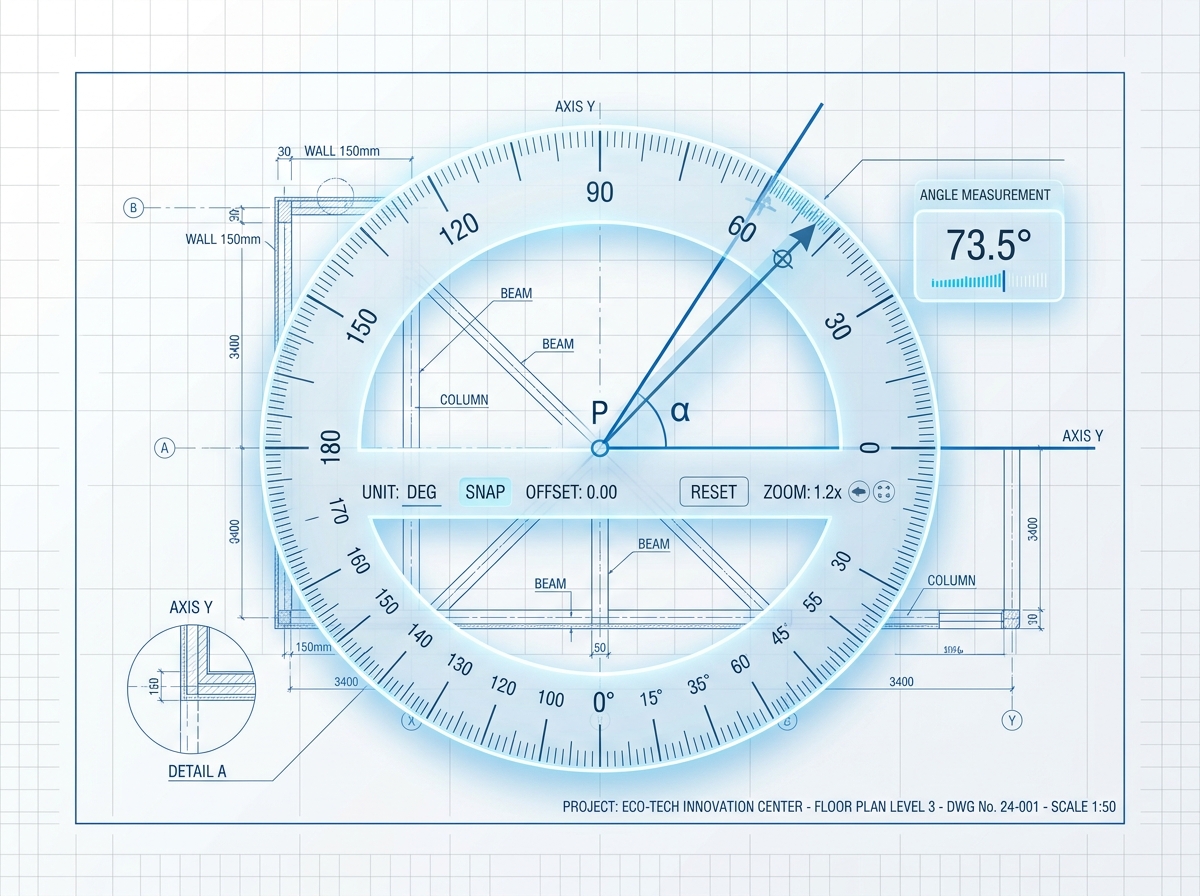
Add measurement rays directly from the center of the protractor with a simple click. The angle between neighboring rays is calculated instantly, so you can see the measurement update as you work. Choose between degrees (0–360°) and radians, and set the decimal precision anywhere from 0 to 4 places. You can also switch between the inner and outer angle scales depending on the orientation of your measurement. For finer adjustments, drag the end of any ray and watch the angle update in real time.
Image Upload and Overlay
Use your own images as a measurement reference by uploading PNG, JPG, and other common image formats. The online protractor can be used with photographs, diagrams, sketches, plans, screenshots, and technical drawings. Uploaded images are placed in the center of the workspace and scaled automatically to make them easy to work with. Move an image anywhere on the canvas by dragging it, resize it using the corner handles, or rotate it with the handle positioned above the image. An opacity control lets you make the image more or less transparent, making it easier to see the protractor and measurement lines underneath. When you're happy with the placement, lock the image to avoid accidentally moving or modifying it.
Multiple Protractors
The Free plan includes a single protractor for basic angle measurements. With Plus and Pro, you can work with multiple protractors within the same workspace, making it easier to compare angles in different parts of an image or drawing. Each protractor can be moved, rotated, resized, duplicated, or locked independently. You can also choose between a traditional semicircular 180° protractor and a complete 360° circular protractor, depending on the type of measurement you're making.
Customizable Display
Customize the appearance of your protractor so it remains clearly visible over different backgrounds and images. Change the tick-mark colors to improve contrast, adjust the protractor size from 0.1× to 5×, and rotate it anywhere from 0° to 360° to match the orientation of your reference. Individual measurement rays can also have their own colors, making multiple measurements easier to distinguish. The protractor has a transparent, glass-style appearance that automatically adapts to both light and dark interface themes for a consistent viewing experience.
Angle Snapping and Grid Overlay
Plus and Pro users can use angle snapping, customizable grids, and ruler overlays to make positioning and alignment easier. Angle snapping helps you place measurement rays at predefined increments, while adjustable grid spacing and opacity provide a visual reference for consistent positioning. These tools are designed to assist with visual alignment and repeatable measurements. They do not calibrate an uploaded image, determine real-world distances, or compensate for perspective or camera distortion.
Export and Save Your Work
Save and transfer your measurement workspace whenever you need to. All plans support manual workspace export and import using JSON, allowing you to preserve your protractor positions, measurements, images, and other workspace settings. You can also export a standard 1× PNG image without a watermark. Plus and Pro provide additional export options, including CSV and JPEG files, overlay-only images, and higher-resolution 2× and 4× image exports. Pro users can also generate a professional PDF measurement report that includes an appropriate measurement disclaimer, making it more suitable for documenting and sharing measurement results.
What Is an Online Free Protractor Tool?
An online protractor is a browser-based angle measurement tool that lets you measure angles directly on your screen without needing a physical protractor. Instead of relying on the size or position of the image itself, the tool uses a ray-based system: place two rays from the center point of the protractor, and the angle between them is calculated automatically.
Measurements can be displayed in either degrees or radians, with the option to show between 0 and 4 decimal places. Keep in mind that additional decimal places only control how precisely the result is displayed—they do not make the underlying measurement more accurate. For this reason, the tool is best suited to images, diagrams, screenshots, plans, and other on-screen material. For physical objects or measurements where accuracy is important, always verify the result using the original object and a properly calibrated measuring instrument.
What you can do with the online protractor:
- Measure angles on images: Upload photos, diagrams, screenshots, plans, or technical drawings and measure angles directly on them.
- Control measurement precision: Display calculated angles from 0 to 4 decimal places while clearly understanding the tool's accuracy limitations.
- Save and restore your workspace: Export your current workspace as a JSON file and import it again later to continue your work.
- Use advanced tools with Plus or Pro: Access additional export formats and enhanced workspace recovery features with the optional paid plans.
- Measure from almost any device: Use the protractor directly in a modern web browser on a desktop computer, tablet, or smartphone without installing dedicated software.
How to Use This Online Protractor
Step-by-step guide to measuring angles with high precision.
Add a Protractor to Your Workspace
When you open a Free workspace, one protractor is already available on the canvas. Click the protractor to select it, then drag it into the position you need. If you prefer precise placement, you can enter its X and Y coordinates directly in the settings panel. Plus and Pro users can add more protractors using the “+” button or duplicate an existing one when multiple measurements are needed. When working with objects on the canvas, press V to switch to the Select tool before moving or resizing them.
Turn On Measure Angle Mode
Select the protractor you want to use by clicking it. A blue dashed outline will appear around the selected protractor so you can easily identify it. Next, choose Measure Angle from the left-hand toolbar, represented by the triangle icon, or simply press M on your keyboard. You need to select a protractor before entering measurement mode. If no protractor is selected, the tool will prompt you to choose one before you can create measurement rays.
Create Rays and Measure the Angle
Move your cursor around the center of the selected protractor. A temporary preview ray will follow your cursor, helping you position the measurement accurately. Click once to place the first ray. Move the cursor to the desired position and click again to create the second ray. The angle between the two rays is calculated automatically and shown along the corresponding arc. You can continue adding rays when you need to measure several angles. Each new ray is compared with the ray placed immediately before it. To make a correction, simply drag a ray's endpoint to a new position—the associated angle measurement will update instantly as you move it.
Adjust Your Measurement and Export
Once your measurements are in place, fine-tune the workspace to suit your needs. You can change the protractor's position, rotation, scale, colors, angle unit, and decimal precision. All plans allow you to save your workspace as a JSON file and export a 1× PNG without a watermark. Plus and Pro plans provide additional tools such as angle snapping, grid and ruler overlays, CSV and JPEG exports, and higher-resolution 2× and 4× image exports. Pro also includes the option to create a PDF measurement report.
Why Choose Our Protractor?
Measure and work with angles directly in your browser using a flexible digital workspace built for everyday measurements, diagrams, images, and learning.
High Precision
Clear and Detailed MeasurementsGet angle readings with adjustable decimal precision and an easy-to-read measurement display. The workspace is designed to make it simple to position your protractor and inspect angles on digital images and diagrams.
- Adjustable decimal precision
- Live measurement updates
- Zoom and workspace controls
- Degree and radian display
Smart Alignment
Position Measurements More EasilyPlace and adjust your protractor and measurement rays with visual alignment tools. Optional grid and snapping features can help you position objects consistently, particularly when working with multiple measurements.
- Angle snapping
- Adjustable grid overlay
- Ruler and alignment guides
- Flexible object positioning
Calculation Tools
Useful Angle CalculationsGo beyond simply reading an angle. Use complementary calculation features and related mathematical tools to work with angle values and conversions in one place.
- Real-time angle calculations
- Degree and radian conversion
- Complementary angle calculations
- Helpful mathematical references
Export and Sharing
Keep a Copy of Your MeasurementsSave your work and export measurement results in formats suited to different needs. Whether you want to continue working later, analyze your data, or share a visual result, the available export options give you greater flexibility.
- JSON workspace backup and restore
- PNG and image exports
- CSV export on supported plans
- PDF measurement reports with Pro
- Higher-resolution exports with Plus and Pro
Learning Mode
Useful for Education and PracticeThe interactive workspace can also be used to demonstrate angle concepts and practice measuring angles visually. Students and educators can experiment with rays and protractors while seeing measurement changes immediately.
- Interactive angle measurement
- Visual demonstrations
- Step-by-step practice
- Immediate measurement feedback
Cross-Platform
Use It on the Device You Already HaveBecause the protractor runs in a modern web browser, there is no software installation required. Open the tool on a desktop, laptop, tablet, or compatible smartphone and work directly from the browser.
- Browser-based operation
- Responsive interface
- Desktop and mobile support
- No installation required
- Access your workspace from compatible devices
Types of Angles & Geometry Reference
Learn about angles, their types, relationships, and practical applications. Build your understanding of geometric concepts with clear explanations and real-world examples.
Acute Angle
An angle that is less than 90 degrees. Common in triangles and everyday objects.
- •Corner of a book
- •Roof pitch
- •Scissors when slightly open
Right Angle
An angle that measures exactly 90 degrees. Forms a perfect corner.
- •Corner of a square
- •Wall meeting floor
- •Book corner
Obtuse Angle
An angle that is greater than 90 degrees but less than 180 degrees.
- •Open laptop screen
- •Reclining chair back
- •Open door
Straight Angle
An angle that measures exactly 180 degrees. Forms a straight line.
- •Horizon line
- •Straight road
- •Flat table edge
Reflex Angle
An angle that is greater than 180 degrees but less than 360 degrees.
- •Clock hands at 10:00
- •Open compass
- •Partially opened fan
Frequently Asked Questions (FAQ)
Find instant answers to common questions about angle accuracy, privacy, scale calibration, and file export.